Tesla Model 3 problems and fixes: safe owner checks
An unresponsive screen, a charging session that has not started and a tyre-pressure alert should not be collapsed into one claim that a Model 3 is faulty. Each gives different information. Some observations lead to an owner setting or a phone check; others require attention to the vehicle's instructions and a qualified service provider.
This guide draws on Tesla's current owner and support documentation, checked on 20 November 2026. It does not establish how often any symptom occurs, diagnose a particular car or report a road test. Start with the vehicle's exact message and configuration. A procedure that fits another owner's model year, software or charging equipment may not fit yours.
Match the manual to the car
Tesla's current Model 3 manual index identifies the 2024-and-later vehicle family and a software version. Earlier cars have separate documentation. Use the manual applicable to your vehicle, and record its model year, relevant equipment and installed software when seeking help. Do not infer a feature from the Model 3 badge alone.
Our existing Model 3 range and configuration guide explains why versions and test standards need care. Troubleshooting needs the same discipline: distinguish a change in the car's behaviour from an expectation based on another configuration. Neither an international product page nor an online manual confirms a South African dealer, available parts or a local warranty arrangement.
For an imported vehicle, establish the seller's and service provider's responsibilities before authorising work. Ask who will assess the issue, what information they require and how any proposed repair is quoted. Confirm the service location, any transport arrangements, diagnostic charges and support entitlement directly with the provider.
A frozen touchscreen: restart only while safely parked
Tesla's touchscreen restart instructions say to stop and select Park before holding both steering-wheel scroll buttons until the screen turns black. Wait approximately 30 seconds for it to restart. During that process, status information, warnings and the reversing camera are not visible. Do not attempt it while driving.
Tesla explicitly distinguishes this from restarting other vehicle components or powering the car off and on. A screen that responds after a restart is useful information, but it is not proof that every underlying issue has been repaired. If an alert persists, or the display repeatedly becomes unusable, retain the details and seek the service guidance relevant to that symptom.
Before changing anything, record when the freeze happened and whether the same action triggers it. Note any associated alert after the screen returns. Do not recreate the problem in traffic to make a video. A safely collected description can help an assessor distinguish an interface complaint from a vehicle condition that requires a different response.
The phone does not unlock the car
Tesla's vehicle-key support page explains that phone key uses Bluetooth. Its troubleshooting starts with phone and app conditions, including an updated app and the necessary connectivity. Check the guidance for your phone rather than assuming that being able to open the app proves the local key connection is working.
Keep an authenticated backup key available and follow the vehicle's documented key-card procedure when needed. Avoid deleting a working key while you are uncertain how to authenticate a replacement. If the problem began after changing phones, distinguish initial setup from an intermittent failure on a previously working phone. Those are different situations to describe to support.
Test any revised setup while parked, with a backup access method available. Confirm both entry and the intended locking behaviour before relying on it away from home. Do not publish key-card details, account credentials or other access information in a help request. A service provider needs the symptom and configuration, not unrestricted access to your online identity.
Connected to a charger does not always mean actively charging
Tesla's charging instructions distinguish connection, charging status, schedules and limits. A solid blue charge-port indication can mean the charger is connected while the car is not charging, including when charging is scheduled. Review the status message and the selected schedule before treating the absence of an immediate session as a battery fault.
Use the daily and trip charging recommendations shown by your particular vehicle or app. Do not import a universal charge percentage from another owner's battery configuration. Tesla also warns against forcing the charge-port door. Match the equipment and connector instructions to your vehicle's market and year, rather than assuming every photographed Tesla cable is appropriate.
Record the displayed alert, charger identity, session time and whether the same issue occurs with another compatible, properly operated charger. That comparison may help the vehicle or charging provider investigate. It does not justify opening equipment, bypassing a protective shutdown or improvising adapters. If equipment is damaged, unusually hot or displaying a safety fault, stop using it and seek the relevant qualified assistance.
Tyre-pressure warnings require a physical check
The Model 3 tyre-care instructions distinguish direct and indirect monitoring depending on configuration. They direct owners to the vehicle's tyre-information label and recommend an accurate gauge with cold tyres. Do not release air from warm tyres simply to make their readings match a cold-pressure target.
A dashboard estimate is not a substitute for inspecting an affected tyre. Repeated pressure loss, damage or unusual handling needs professional attention; do not dismiss it because an alert cleared. Follow any instruction to pull over. Avoid applying a remembered pressure value from a different wheel size, towing setup or aftermarket tyre to your own car.
When reporting the issue, say which tyre was involved, when it was measured and whether it loses pressure again. Keep tyre changes and wheel configuration in the record. That gives a tyre specialist something concrete to assess without assuming a sensor failure or an inherent defect in the entire vehicle range.
Sounds: compare the circumstances, not just a recording
Tesla publishes a normal operating sounds guide, including examples associated with parking-brake operation, battery contactors and climate or battery-temperature management. The manufacturer expressly says the guide is not a diagnosis or a complete catalogue. A superficially similar noise does not clear your vehicle of a fault.
Record whether the sound occurs parked, charging, turning or moving, and whether it accompanies a warning or change in behaviour. Persistent new noise, impaired braking or steering, or a warning requiring immediate action deserves a service response rather than repeated comparisons with online clips. Do not dismantle high-voltage parts or other safety-critical systems to investigate a sound.
Give the assessor a useful account
Prepare a short timeline: exact alerts, software version, circumstances, checks already performed and whether the symptom returns. Separate what you observed from what you suspect. Ask the service provider to explain the diagnosis and proposed remedy before presenting an assumed repair as established fact.
The most useful owner checks preserve that distinction. A screen restart is an interface step; a phone-key check concerns access; a charging schedule can explain a waiting session; a tyre warning calls for physical attention. Following the correct documentation helps you decide what can be checked safely and what needs qualified assessment, without turning a collection of possible symptoms into an unsupported reliability verdict.
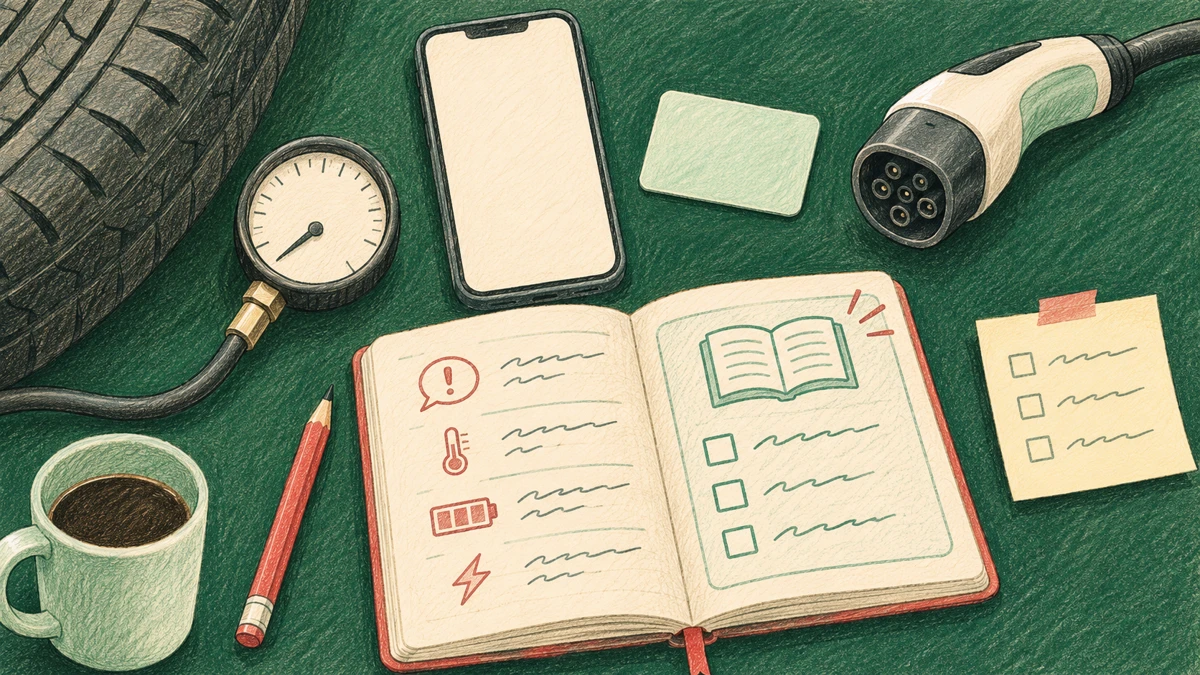
AI image disclosure: the featured image is an AI-generated editorial illustration of generic owner-check items. It does not depict a Model 3 dashboard, actual vehicle fault or performed repair.
